Using AI image generation

Happy new year, and happy new post! Last time we dipped our toes in how to interact with Gemini APIs from Python and built a chat bot. This time, let’s take that a bit further and come up with a way for a user to describe a picture and have Vertex AI create one that fits that description. And this time we’ll see how to deploy it to the web so other people can use it.

This post tries to be accessible to beginners but still useful to experienced developers. If you are already comfortable with writing Flask web apps, you can go ahead and skip ahead to the Generating an image section and work forward from there.

Set up

If you followed the previous post and built the chatbot yourself you’ve already created the necessary environment for this example. You need a Google Cloud account and a cloud project to work in. You’ll work in a “local” Python environment with the necessary tools installed. That means a new folder and a new virtual Python environment. (Why is “local” in quotation marks? Because I am including using Cloud Shell as “local”, since it behaves almost exactly like a shell on your own machine but with most of the prerequisites already in place.)

Create and change to a new new working folder, set the project using gcloud config, and create empty files to work in: main.py for the Python code and requirements.txt for the packages it will need:

mkdir demo-image-generation
cd demo-image-generation
gcloud config set project silver-origin-447121-e9
touch main.py
touch requirements.txt

The project ID shown above is a random one generated by Google Cloud because the name I chose, demo-image-generation, was already in use.

The application skeleton

You’re going to create a Python web application using Flask for this. It just needs to be one page: an editable input box for entering the description (called the prompt in AI) and the image generated. When the user submits the form on that page your application will read the prompt, call the necessary API, and then return a new page that includes the new image. The user can then refine the prompt and submit the refined one for another image.

It should look more or less like this:

The prompt of “a cute puppy” should be whatever the user entered, and the gray block should be the actual generated image. A basic web page to show this is:

<!DOCTYPE html>
<html>
    <head><title>Demo Image Generation</title></head>
    <body>
        <h1>Demo Image Generation</h1>
        <form action="/" method="post">
            <input type="text" name="prompt" id="prompt" value="{{prompt}}">
            <input type="submit" value="Generate Image">
        </form>
        <br><img src="{{image_url}}">
    </body>
</html>

Your program will have to insert the correct values for the {{prompt}} the user entered and {{image_url}} we generated, so we will treat this HTML as a template for the returned page. Create a folder called templates and save the above code in it as index.html.

That’s the web page code; let’s take a look at the Python program. You are going to use the Flask framework, which is both powerful and simple, a combination I really appreciate. A basic Flask program looks like this:

from flask import Flask
app = Flask(__name__)

# Request handlers go here

if __name__ == '__main__':
    app.run(debug=True, host='0.0.0.0', port=8080)

The first two lines import the Flask library and create a Flask object in the global variable app. That is followed by request handlers that describe how to handle requests for different paths, such as the home page – we’ll look at those in a minute. And the last section says that if this code is run directly, rather than imported by another program, start the Flask app object running in debug mode.

This code can run standalone or imported into another web server that’s more scalable and performant. In that case the other web server will call on this module’s app variable to handle requests for it. That happens in Cloud Run, which we will be using to deploy this to the web later on in this post.

Go ahead put the code above into your main.py file, and add the line below to requirements.txt:

flask

Then install the modules there and run the program:

pip install -r requirements.txt
python main.py

When you open a page from this server you will get a 404 Not Found response. That’s because the program does not yet specify how to handle requests for any page. Let’s add that to the skeleton before we go on to work on real functionality. When the home page is requested, the program should return the index.html file we showed above.

You’ll declare the request handler with Flask’s app.route decorator. That decorator makes whatever function declared immediately after it run whenever the specified path is requested. Here’s the code:

@app.route("/"):
def home():
    return render_template("index.html")

This declares that requests to / (the home page) will run the home function and return its output to the browser. In this case, that output will be the contents of templates/index.html. Add this function to your main.py program, and change the initial import statement to:

from flask import Flask, render_template

Then try running it again. You should see a page similar to the mock-up shown earlier. There will be no prompt filled in nor image displayed because the render_template function will replace those with empty values since we didn’t provide any values to it. You’ll fix that in the next section.

Home page handler

When the home page is called with a POST request indicating a form was submitted, the handler should get the prompt from the form, generate an image for it, and return the index.html page with that prompt and a URL for that image filled in.

The program can get the submitted prompt from the form with the Flask request object. You’ll need to change the first line to also import that:

from flask import Flask, render_template, request

The function can fill in the placeholders in the index.html file by providing the correct values as parameters to render_template. So your code will be:

@app.route("/", methods=["GET", "POST"])
def home():
    if request.method == "GET":    # No form submitted
        return render_template("index.html")

    # POST with a form submitted
    prompt = request.form["prompt"]
    image_data = generate_image(prompt)
    image_url = get_url(image_data)
    return render_template("index.html", prompt=prompt, image_url=image_url)

There are several new things in the code above. First, this handler now receives both HTTP GET (fetch a page) and POST (submit a form) requests. Without the methods property on the @app.route decorator, Flask would only send GET requests to it; POST requests would get a 405 Method Not Allowed response.

Second, the handler checks whether this is a GET request or not. For a GET request it just returns the empty template, just as before. But for a POST request it use the Flask request object to get the value of the submitted prompt in the form. And then it generates the image and returns the page with the prompt and image URL inserted. Here’s the response to the prompt “a cute happy black and white shih tzu puppy” with the completed program (from the next section):

Next is the real work in generating an image. But in the spirit of taking small steps, let’s just create placeholders for the hard work of generating an image and creating a URL for it:

def generate_image(prompt):
    return b""    # Empty byte string

def get_url(image_data):
    return ""

Since generate_image is supposed to return binary data, the placeholder returns a byte string instead of a normal string.

Update the main.py file to have the code above and try running it again. The first home page request should return an empty form, and submitting it should return a page with prompt filled it. It also returns an image URL, but since that’s blank there’s nothing displayed.

Generating the image

Ready for the real point of this post, generating an image from a prompt? Well, here it finally is!

The function will use Google Cloud’s Vertex AI library to generate the image, so an import statement needs to be added near the top of the program. It also uses the Python tempfile standard library:

from vertexai.preview.vision_models import ImageGenerationModel
import tempfile

Since this is not a standard library it will also need to be installed, so add this line to requirements.txt:

vertexai

And now, the code to create the image:

def generate_image(prompt):
    model = ImageGenerationModel.from_pretrained("imagegeneration@006")
    response = model.generate_images(prompt=prompt)[0]

    with tempfile.NamedTemporaryFile("wb") as f:
        filename = f.name
        response.save(filename, include_generation_parameters=False)
        with open(filename, "rb") as image_file:
            binary_image = image_file.read()

    return binary_image

The actual AI image generation is done in the first two lines. ImageGenerationModel.from_pretrained creates a model object from a saved, pretrained one. That returned model has a method called generate_images that will use the model to create images based on the prompt. That method returns an iterable list of as many images as requested, defaulting to one image. So element 0 of this list is an object representing the generated image.

This immediately raises the question, where do you get pretrained models? It looks like imagegeneration@006 is one, but where did that magic name come from? It’s in Google’s Vertex AI image generation documentation, though it takes a bit of digging to find it. AI documentation is incredibly broad and deep, so this direct pointer may be one of the most valuable things in this blog post for you!

Once the function has this image object it needs to get the binary contents of it to return it to the function’s caller. The documentation for the object shows only way to get the contents of it: saving it to a file. I was surprised there was no more direct way to do this, but maybe a future library update will have it. In any case, saving it to a file is the only way for now, which is what the rest of the function does by writing it to a temporary file and then reading the file in binary mode.

Creating the URL

The code needs to create a URL pointing to the image. That’s going to be a little tricky; the image is in memory only, and there’s no web server configured to return it now. And the web page is normally going to fetch the image with a separate request and the local variable data containing the image won’t exist in that context. It might not even exist anywhere by then since we hope to deploy this to Cloud Run, a serverless platform. It’s possible that each separate web request could be handled by a separate server, so even if the image data is saved in a file the file might not be on the machine receiving the URL.

The program can’t keep the image data in memory nor in the filesystem of its server. Though keeping it in the filesystem would almost always work in the real world, which is worse in a way than never working. It would lead to an expectation that would fail just when it was most important.

So how do you get the image to the web browser? The program could save the image data outside of the web server, such as in Google Cloud storage. But you would have to arrange for it to be cleaned up eventually and make sure each image has a unique name so browsers didn’t end up with other pages’ images. Or, it could stuff the entire image into the URL put in the web page itself!

Data URLs aren’t widely known, but they are a great tool for serverless applications that create an return images. When the web server receives a request to create an image it can create a URL containing the image and return it as part of the web page. Then there’s only one HTTP request, the one submitting the form asking for an image. When the browser needs to display the image the data is right there inside the page.

The format of a data URL is the keyword data followed by a colon, then the content type, a semicolon, the keyword base64, a comma, and then the base64 encoded data, such as:

data:image/png;base64,YWJjZGVm

Of course a real data URL for an image file will be much larger. That’s okay; Python, web servers, and web browsers will all be fine with it.

Here’s the code to generate a data URL for the binary image data it is sent:

def get_url(image_data):
    base64_image = base64.b64encode(image_data).decode("utf-8")
    content_type = "image/png"
    image_uri = f"data:{content_type};base64,{base64_image}"
    return image_uri

The code uses the standard base64 Python library, so add an import line at the top of the file:

import base64

The completed program

That’s all the pieces. Put them together and you have a program to generate images based on descriptions you enter. The combined code is also available in this GitHub repository.

Want to let a friend use the program? They’d have to get their own Google Cloud accounts, or maybe visit and use your logged in laptop. That’s less than ideal. The final step today is going to be deploying this program to the web so you can share it. There are plenty of ways to do this, but this uses Cloud Run.

Deploy to Cloud Run

After all the lead up to this point this step is likely to be disappointingly simple. Run this command in your shell:

gcloud run deploy

Answer all the questions. The defaults are usually fine, except near the end, when you’ll be asked whether to allow unauthenticated invocations. Answer Y instead of the default N for this.

Wait a minute – do you really want to allow just anybody to use your program? Remember, you’ll be paying for it. Surely you want to restrict this to people you select?

You probably do, but Cloud Run’s authenticated invocation restriction can’t do that for. If you don’t allow unauthenticated invocations no web browser can ever access it. That’s because Cloud Run’s authentication mechanism is intended for use by other programs connecting to your Cloud Run service as an API, not for users running web browsers.

You can protect your service with a login screen, but it’s a much bigger deal than you might think. Maybe I’ll write a post on how to do that soon. The concepts, but not how to put them all together in front of your service, are described in this blog post of mine, however.

To get back to the point of this post, once you have deployed this program to Cloud Run you will have a web address that anyone can use to generate images with your program. At your expense. Which brings us to the concluding section of this post.

Cleaning things up

Your program will incur some cost every time somebody uses it. If that doesn’t appeal to you, you should either use the cloud console to delete the service you created, or go to the dashboard and shut down the entire project you created for this. Shutting down a project is the surest way to make sure there won’t be any more charges from it.

I hope you found this very detailed post useful. Most of the time I won’t include every tiny step as I did here, but the first time I encountered this AI stuff some apparently straightforward steps were pretty confusing to me. I’ve tried to clear all that up here.

A gen AI tidbit to get back to work

I’m a Google Cloud Development Relations Engineer, which means I should help people use our cloud to solve their problems. But I’ve been away from work most of the year up to now; first due to a lot of sick days then a six month disability leave when I realized I had a serious heart condition requiring lots of attention. I’m healed up now and back to work, and… what is this? A ton of AI stuff to catch up on for me.

It occurs to me that this is a chance to share how I’m learning this stuff from scratch. Based on the documentation I’ve been using, such a perspective may be valuable to a lot of people. It sometimes seems like everything I read about generative AI assumes I already understand 90% of the field and am just adding the last 10%. Well, I currently understand close to 0% of the field, and have to start by learning the first 10%.

So here’s an easy exercise I just did: write a gen AI chat bot using Google Cloud’s AI services.

What? Everybody does that! Who needs another one?

Nobody. Nobody needs another gen AI chat bot. But the first step into a new field is usually the hardest, so let’s take the smallest, easiest step I could find. A chat bot it is.

If you wish to make an apple pie from scratch, you must first invent the universe

But creating a new solution on Google Cloud is a lot easier because almost all of the prerequisites are already provided for you. So you will start by creating a Google Cloud project and enabling billing for it.

  1. First, go to console.cloud.google.com. You will have to sign in with a Google account. This can be a regular GMail account or a GSuite account (such as your school’s or company’s email account). However, a GSuite administrator can restrict your access to Google Cloud, so unless this experiment is for work or class, use a GMail account. You can get one for free if you need to.
  2. If you’ve never used Google Cloud with this account you may be offered $300 in free credits for 90 days. You’ll still need to add a payment method, but it won’t be charged until the free trial is over (in 90 days or $300, whichever comes first). Even then, it won’t be charged until you agree at that time.
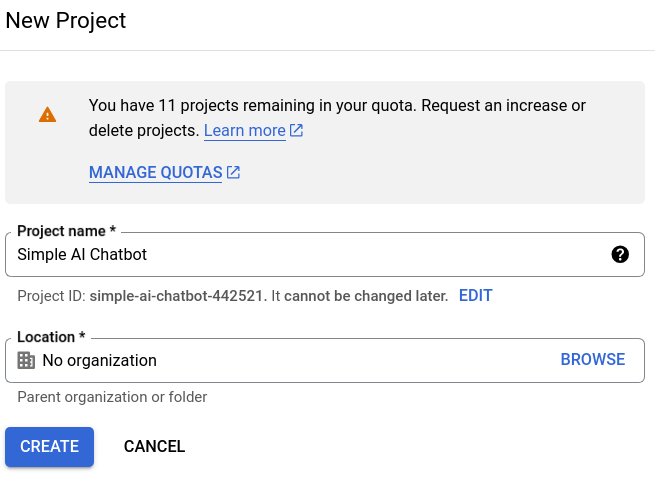
  3. Create a project. There’s a drop-down at the top of the page that may say Select project, or one may already be selected, but create a new one for trying this out. That way, when you’re done, you can delete the whole project and be sure nothing that can incur charges will live on. Click the drop-down then the link for NEW PROJECT. I’m calling mine Simple AI Chatbot. Here’s what it looks like to create that:

  4. You notice that the Project ID is created from the name I entered, but altered to be globally unique. So when I need to refer to the project’s ID, I’ll use simple-ai-chatbot-441521. Press Create, wait a few seconds for the project to be created, then return to that project selector drop down and select your new project.

Your first step is done.

Create a Python programming environment

This example is in Python. Parts of it would be straightforward to do in other languages with the equivalent Google Cloud libraries, but to get to the end of this one you’ll need to use Python.

  1. Open a command shell/terminal/prompt that you can type commands into. Note that you can use the free Cloud Shell for this, which I recommend. To open that, click the icon that looks a little like a command prompt in the upper right corner of your Console page:
  2. The basic tools you’ll need are already installed in Cloud Shell for you. If you are using your own local machine shell, you’ll need to install Python 3 and the Google Cloud CLI. You’ll also need to authenticate to the cloud with the command gcloud auth login.
  3. Create a new folder, change to it, and create a virtual Python environment with
    python3 -mvenv env.
  4. Activate the virtual Python environment. You’ll have to do this every time you restart the shell. For Windows, the command is env/Scripts/activate. For other environments it’s source env/bin/activate.

When the virtual Python environment is active, changes you make to the Python installation will only affect it, and not other environments you may be using for other projects.

Install Python packages

You will install three Python packages (programming libraries). The first is for connecting to Google Cloud’s Vertex AI service, which will handling answering questions from users. The second is for gradio, a really handy package for building web chat bots in Python. And the third is for Jupyter, an enhanced Python interactive shell and interactive notebook host:

pip install google-cloud-aiplatform
pip install gradio
pip install jupyter

Write a Python code fragment to talk to Vertex AI

First, set the project ID you’ll be using with Google Cloud libraries, as below. Use your own project ID instead of the one shown here.

gcloud config set project simple-ai-chatbot-442521

You may have to click on a pop-up or follow a link and instructions for this step.

Now, open up the Jupyter interactive Python command line and enter the following lines:

jupyter console
In [1]: import vertexai
In [2]: from vertexai-generative_models import GenerativeModel
In [3]: model = GenerativeModel("gemini-1.5-flash")
In [4]: prompt = "Can I drive from Seattle to London?"
In [5]: result = model.generate_content([prompt])
In [6]: result

You should see something like the following (but you probably won’t at first – see the later text for why and how to fix):

candidates {
  content {
    role: "model"
    parts {
      text: "No, you cannot drive from Seattle to London.  \n\n* **Geography:** Seattle is in the United States, and London is in the United Kingdom. They are separated by the Atlantic Ocean.\n* **Transportation:**  You would need to take a plane or ship to cross the ocean. \n\nWhile it\'s fun to imagine driving across the world, it\'s not physically possible! \n"
    }
  }
  finish_reason: STOP
  safety_ratings {
    category: HARM_CATEGORY_HATE_SPEECH
    probability: NEGLIGIBLE
    probability_score: 0.0693359375
    severity: HARM_SEVERITY_NEGLIGIBLE
    severity_score: 0.0356445312
  }
  safety_ratings {
    category: HARM_CATEGORY_DANGEROUS_CONTENT
    probability: NEGLIGIBLE
    probability_score: 0.248046875
    severity: HARM_SEVERITY_NEGLIGIBLE
    severity_score: 0.0756835938
  }
  safety_ratings {
    category: HARM_CATEGORY_HARASSMENT
    probability: NEGLIGIBLE
    probability_score: 0.138671875
    severity: HARM_SEVERITY_NEGLIGIBLE
    severity_score: 0.0466308594
  }
  safety_ratings {
    category: HARM_CATEGORY_SEXUALLY_EXPLICIT
    probability: NEGLIGIBLE
    probability_score: 0.099609375
    severity: HARM_SEVERITY_NEGLIGIBLE
    severity_score: 0.0502929688
  }
  avg_logprobs: -0.2477687277444979
}
usage_metadata {
  prompt_token_count: 8
  candidates_token_count: 82
  total_token_count: 90
}
model_version: "gemini-1.5-flash-001"
candidates {
  content {
    role: "model"
    parts {
      text: "No, you cannot drive directly from Seattle to London.  They are separated by the Atlantic Ocean.\n"
    }
  }
  finish_reason: STOP
  avg_logprobs: -0.04128225644429525
}
usage_metadata {
  prompt_token_count: 8
  candidates_token_count: 21
  total_token_count: 29
}
model_version: "gemini-1.5-flash-002"

Why won’t might you not see this? Because some of the steps might have an error due to necessary APIs not being enabled by default. In particular, steps 3 and 5 might generate long, likely confusing, error messages. But somewhere near the ends of those messages there will be text similar to [some] API has not been used in project [project ID] before or it is disabled. Enable it by visiting [url] then retry. Go to that URL, click Enable to enable the needed API, then use the up-arrow key to re-enter and retry the failed command.

The final step (In [6]:) just displays the value of the result of the function call. By examining the structure you can see how to retrieve and print the actual answer.

In [7]: print(result.candidates[0].content.parts[0].text)
No, you cannot drive from Seattle to London.  

* **Geography:** Seattle is in the United States, and London is in the United Kingdom. They are separated by the Atlantic Ocean.
* **Transportation:**  You would need to take a plane or ship to cross the ocean. 

While it's fun to imagine driving across the world, it's not physically possible!

The Gemini model responses may include markdown formatting, as shown here. When displayed using a markdown-aware environment, such as the WordPress one I’m using here, they’re easier to read:

No, you cannot drive from Seattle to London.

  • Geography: Seattle is in the United States, and London is in the United Kingdom. They are separated by the Atlantic Ocean.
  • Transportation: You would need to take a plane or ship to cross the ocean.

While it’s fun to imagine driving across the world, it’s not physically possible!

Well, there goes my vacation plan. Maybe I’ll drive to Tokyo instead.

Enter the command quit to exit the Jupyter console.

Create the web chat bot app

Use a code editor to create the file main.py to hold your application. Cloud shell has a built-in editor that you can invoke by clicking the pencil icon at the top right of the page:

Enter the following program using the editor:

import gradio
import vertexai

from vertexai.generative_models import GenerativeModel
model = GenerativeModel("gemini-1.5-flash")

def ask(question):
    response = model.generate_content([question])
    answer = response.candidates[0].content.parts[0].text
    return answer

bot = gradio.Interface(fn=ask, inputs=["text"], outputs=["text]")
bot.launch()

You’ve already seen most of this code in the earlier fragment. The ask function just submits the provided question and returns the text portion of the response. The actual web app is built by importing the gradio module at the top. Its behavior is defined in the second to last line (show one input to receive text, and one output to display text, and use the ask function to take the input and return the output). And the web app is run with the bot.launch() line at the end.

Save the file, then run the command python main.py. You should see a message that the app is running on a local URL. Click that URL and you should see a web page you can enter a question in. Type a question, then either Enter or click Submit, and view the response:

Aw, man, I can’t go anywhere!

Kill the chat bot server app by hitting Ctrl-C in the command shell.

Clean up

Most of what you’ve done for this exercise will incur few, if any charges. But making queries to Vertex AI might. If you don’t want that happening, shut down the entire project you created, which I strongly recommend for any project you experiment with. Once the project is shut down, all charges stop. No surprise bills will ever show up. Putting all your cloud resources into projects is one of Google Cloud’s best, and often unheralded, features. Shut down the project and don’t ever worry about it again!

Goodbye for now

For such a simple exercise this turned out to be a surprisingly long post. I hope you found it useful, and a starting point for trying other things in Google Cloud, and/or Google Cloud AI. Let me know in the comments; if there’s interest, I’ll try to keep doing this. Thanks for your attention.

Authenticating users with Google Sign-in

I hate dealing with user authentication, so I’m very happy to make user management and authentication somebody else’s problem. “Somebody else” like Google. Handling user information securely, supporting various kinds of multi-factor authentication, enabling account recovery while avoiding account hijacking… those are all much better handled by Google than by me!

Unfortunately for me, I found it pretty confusing to get Google to do that for me. Oh, there’s accurate and detailed information about how to do it on Google’s sites. A lot of information. About a lot of different ways to do it. Mostly using libraries that, for me at least, make it hard to debug things that I do wrong. So I decided to get down to basics and work through the fundamental steps, in detail, needed to have my server-side web apps use Google Sign-in. This blog post shows how I did it, and how you can do it if you want.

Logical Steps

I’m comfortable managing sessions for my app, so my real problem was verifying a user’s identity before I create such a session. The steps for that are:

  1. The browser sends request to my app. My server checks whether there is a current active session, as indicated by a cookie it set and trusts. If there is, it’s okay, and my app returns the requested page. Otherwise, my app returns a web page stating that the user needs to authenticate to use the site further. The page has a link the user should click to do that. (Alternatively, my app could just send a redirect response to that link, but that’s pretty abrupt and might be confusing to the user.)
  2. The user clicks the link, and the browser sends a page request to Google. That link is to a Google page at accounts.google.com. The exact format of that link is described a bit later in this post. Google will return web pages and handle responses as needed to authenticate the user. If the authentication succeeds, Google will return a redirect response pointing to a page at my site.
  3. The user’s browser processes the redirect by sending a request to my app. My server uses information in that redirect URL to retrieve the user’s information from Google. This retrieval is from my web server to Google, not from the user’s browser. If everything goes right my server now knows who the user is, so the server creates a session and returns a response to the user that includes a header to set a cookie for that session. That response might be a web page, or a redirect back to the page the user originally requested. But now the user’s browser has a valid session cookie and the user can access my site.

Of those three steps, my server has to deal with step 1, where it gets a request that may or may not have an active session associated with it, and if not, has to respond with a page or redirect with the exact right URL. That URL sends the user’s browser to Google for step 2; that’s Google’s to handle, so my app is not involved. Finally, Google redirects the browser back to my app for step 3, and my server has to use information in that redirect URL to get the user’s identity.

So let’s look at how an app handles step 1 and step 3. But first, there’s a step 0. Google is not going to identify a user when it’s asked to by just anybody. An application that wants to use Google Sign-in needs to register itself with Google first.

Let’s go through the steps you need in order to have your web server use Google sign-in.

Step 0 – Register the app with Google

You will need to create a Google Cloud Platform project at console.cloud.google.com. You can use a Gmail or G Suite account for this, or you can create a plain Google Cloud account when asked. You will probably have to provide a credit card, but there’s a generous free trial, you won’t get billed when the trial is up without first being notified, and in any case, this registration doesn’t require using any services that currently cost money.

Once you have a project, use the menu on the left hand side of the console to select APIs & Services, then OAuth consent screen. Unless you intend to authenticate only users in a G Suite domain you control, your app will be considered External, so you will select that and click Create. Fill in the page with information about the app (you can name it anything you like) and save it. You’ll then need to go to the Credentials tab (you may be directed there automatically) and create an OAuth Client ID for your web application. As part of this you should register an Authorized redirect URL. That’s the URL in your app that will be called in Step 3.

When you finish this step you will have a CLIENT_ID and CLIENT_SECRET from the Credentials you created. You’ll also have selected and registered the REDIRECT_URI for Step 3. You’ll use those in the following steps.

Step 1 – Provide a sign-in URL

When your server receives a request that doesn’t include a valid session cookie, it will reply either with a page that has a link to a specific sign-in address, or with a redirect response to that same address. The task for this step is to create that address.

The address is below, broken over several lines for display, but is all on one line for the actual app:

https://accounts.google.com/signin/oauth?
response_type=code&
client_id=CLIENT_ID&
scope=openid%20email&
redirect_uri=REDIRECT_URI&
state=STATE

The words in CAPITAL LETTERS all need to be replaced by the correct values. Step 0 provided those values for CLIENT_ID and REDIRECT_URI. The value for STATE can be almost any string you’d like – the URL the app is directed to in Step 3 will include it, so it’s a way to pass that information from this step to that step. I usually put the path of the page that was originally requested here.

The response_type=code argument is asking for the eventual redirect request to include a code that can be used to retrieve information about the sign-in results. scope=open_id%20email says that the information the app wants is the signed-in user’s email address.

Step 2 – Authenticate the user

This is Google’s problem, not yours. But Google is going to check that:

  • The application asking for this is registered with Google (the CLIENT_ID)
  • The location to send the user back to (the REDIRECT_URI) is registered for that application

Google is also going to tell the user the name you gave the application when you registered it, and a link to the application’s privacy policy, if one was provided. Eventually, if the user consents and is authenticated, Google will send a redirect response to the user’s browser, which will then make a request to your server, beginning Step 3.

Step 3 – Retrieve the user information

This step starts when the user’s browser makes a request to the REDIRECT_URI that the Google response specified. That request will include query parameters, and be of the form:

REDIRECT_URI?state=STATE&code=CODE.

You app’s server will use those query parameter values (STATE and CODE) to get the user’s identity information. The value of STATE is just whatever value the server sent back in Step 1. That’s handy for keeping continuity from that step to this one, since so far as the server is concerned this request could have come from any user currently in the process of authenticating. There’s no other way for your server to know which page in your app the user was trying to access when told they needed to authenticate first.

The CODE value does not include any user information itself, but the server can use it to get that information. To do that, the server (not the user’s browser) will make an HTTP POST request to https://oauth2.googleapis.com/token, and the information needed will be returned as the body of the response. The POST request’s body should have the content type application/x-www-form-urlencoded, and include the following values (as before, this is broken over multiple lines for clarity, but the request body should all be in a single line):

code=CODE&
client_id=CLIENT_ID&
client_secret=CLIENT_SECRET&
redirect_uri=REDIRECT_URI&
grant_type=authorization_code

CODE is the value extracted from the query parameter the user’s browser sent. CLIENT_ID, CLIENT_SECRET, and REDIRECT_URI are the values from Step 0. And grant_type=authorization_code tells Google what kind of code your app’s server is providing.

The response to this POST request will be an application/json body containing information about the user. One field from this JSON object is called id_token, and its value is a JSON Web Token (JWT). That’s a digitally signed piece of data that includes fields about the user, including: the email address, the issuer (which will be https://accounts.google.com in this case), the audience (that is, the recipient this token is intended for, which is your app), and validity periods. You could do all the cryptography and parsing yourself, but the Python library google.oauth2.id_token can handle that, including verifying that the digital signature is valid and from Google.

Once your server has this information, it can save the user’s information in a session object and set a cookie referring to that session. The authentication job is done.

Information Flows

Information between your app’s server and the Google Sign-in service flows in two ways: indirectly, through the user’s browser, and directly from your app’s server to Google. The indirect information is provided in query parameters of URLs the browser requests, either in response to your app sending the browser to Google, or Google directing the browser back. Those query parameters include CLIENT_ID, REDIRECT_URI, STATE, and CODE.

Sensitive information cannot be passed that way (via the browser) because it could be intercepted and used outside the context it is intended for. That’s why Google just sends an opaque code back to your app rather than the user’s email address. Sensitive information must pass directly and securely between your app’s server and Google’s service. That’s via the POST request and response in Step 3. That connection returns the user’s identity, which Google is only willing to provide to your registered app upon user approval, and passes the CLIENT_SECRET, which your server uses to prove its identity to Google.

Sample app

I’ve shared a sample application’s source code on GitHub, showing how all this can work in an extremely minimal web app. You can register a project for Google Cloud Platform and then run this code to try things out. I wrote the code for Google App Engine, but it should run pretty much anywhere. It could be on Cloud Run or Compute Engine, or a different cloud provider, or your own data center, or even your own desktop for testing. For the time being, you can try it out here.

Finding Patterns in π

π is an interesting number. It’s not only irrational, it’s transcendental. Its decimal representation “looks random” (it isn’t random, it’s precisely defined, but seems to pass tests for randomness). It seems likely that any pattern of digits you want can be found somewhere in that representation. It may take a while to find them, but given enough digits of π you can expect to find any given number. For example, Jenny’s number, 8675309, is found at the 9,202,591st position (counting the initial 3 in the number as being at position 0).

I found that out using a cloud application I created to search for any string of decimal digits in π. The approach I took to building it demonstrates some useful approaches to cloud application development and architecture. That’s what this post is about: not a comprehensive cloud architecture framework, just an example of how to think about architecting applications for the cloud. This post doesn’t have a detailed description of the application, but there is example code available at https://github.com/engelke/where-in-pi-is/. With a bit of work you could use that code to build and deploy your own π digit searcher. Or you can get inspiration on how to build applications to solve other problems you encounter.

The Data

If I’m going to find strings in the digits of π, I’ll have to have those digits available somehow. In theory, a program could calculate more and more digits as it searched for a string, stopping when the string is found. But that would be ridiculous; calculating those digits is an intensive, slow process.

Lucky for me, someone already calculated quite a few digits of π. On March 14, 2019, Google announced that Emma Haruka Iwao had calculated more than 31.4 trillion digits of π using Google Cloud Platform tools. That was a new world record when announced. And Google set up a web API for returning selected decimal places at pi.delivery. To get the seven digits starting at the 9,202,591st decimal place, make a web request to https://api.pi.delivery/v1/pi?start=9202591&numberOfDigits=7. You should see:

{"content":"8675309"}

So one way to search for a seven digit number in π would be to just request the seven digits starting at position 0, then at position 1, and so on, until the number being looked for is returned.

Don’t try that. Really, don’t.

The service is pretty fast, taking about 75 ms per request of that size when I tried it out. At that rate, you’d find this number in about four years, unless Google blocked you first for abusing the API. I want faster answers.

So let’s figure out a faster way by building a cloud application to find digit strings in π. When we design for the cloud, we don’t think of a computer as the application platform. No, the entire collection of available web services is our platform. And we commonly will use several of those services, communicating in various ways with each other, to build an application. For the π searcher, we start by looking at each different action that needs to be done, and then perform each action as an independent piece. Then we’ll use cloud technology to get those pieces to work together.

First Piece: Searching

Something has to store the digits of π and search through them. There are links on the pi.delivery site to download the digits to your own storage for processing. The simplest fast way to stream through data is to put it in a file connected to a virtual machine, so that’s what I did: launched a virtual machine Google Compute Engine and put the digits into a text file named pi.txt. I wrote a Python program that memory-mapped that file to a Python byte string, and used the built-in find method for the search. I’d look for other ways if this was too slow.

A search for the seven digit string 8675309 took only 20ms. That’s much better than four years for the repeated calls to the API site. In fact, it’s good enough for me, for now. For every extra digit in length, we can expect to take about ten times as long to search. So looking for an 8 digit number (like a date) should take about a fifth of a second, ten digits (like a phone number with area code) about 20 seconds, and so on. And though this is fairly fast, a lot of searches take too long for the requester to wait for a response, as they would with a web page. Users will have to ask for a search and then later somehow get the result.

That’s the first piece of the application: a search box that can find a requested string of digits reasonably fast. See the where_is function in https://github.com/engelke/where-in-pi-is/blob/master/computeengine/find-in-pi.py for a minimal solution. Now let’s look at what else is needed.

Second Piece: Requesting a Search

The next problem to be solved is how someone can request a search. I completely control the search box virtual machine, so I can just SSH into it and run Python code. That’s not going to work for anybody else. There needs to be some way people can ask for a search to be run. I can think of a few ways:

  1. Fill out a form on a web page
  2. Send an email to a special address
  3. Post a tweet, mentioning a particular Twitter account
  4. Send a text via SMS
  5. Make a voice phone call and say a number (or use a keypad)

We will have to build one or more of those ways, but before getting into that, let’s figure out how that front end that a user interacts with will get the request to the search box. We want the method used to be asynchronous (so the requesting program doesn’t have to wait and possibly get overloaded) and authenticated (so malicious attackers can’t flood the searcher with fake requests). Cloud platforms offer services exactly tailored to that need: message passing.

There are different flavors of message passing available; Google offers PubSub. An application can create one or more topics (for example, one called search_requests) and components can publish messages to the topic and other components can subscribe to the topic, hence the name. Google PubSub guarantees published messages will be delivered at least once, and only rarely delivers a message more than once. That’s okay for our use, since the worst case is that we (very rarely) search for the same requested string more than once.

The front end getting a user request for a search is going to publish a message to the search_requests topic, and the search box will subscribe to that same topic. A PubSub subscription can be configured as push messaging or pull messaging. Push messaging forces each message on the subscriber as soon as it is available, and keeps pushing each message until the subscriber acknowledges it or a retry or timeout limit is exceeded. Pull messaging waits for the subscriber to ask for available messages before delivering them.

Pull messaging is a good fit for this use, since the search box can have a loop that asks for messages, performs the searches being requested one at a time, and then asks for more messages. The search box can’t be overloaded this way, since it’s only running one search at a time. Of course, the backlog of messages will grow if the search box doesn’t consume them fast enough, so that will have to be watched. If the box has the capacity to perform more than one search at a time, we can just have multiple processes, each fetching and processing messages on their own. If we need to scale way up, we can deploy multiple search boxes.

Third Piece: User Request Front End

I listed five possible ways for a user to request a search earlier. We need to implement at least one of them, or there’s no point to having a search box. We will just do one of them for this example, and the easiest seems to be the first: give the user a web page with a form to fill out, requesting the search. If we needed to we could always implement more front ends later, just by having them each publish to the search_requests PubSub topic.

There are lots of ways to provide a web page with a form and then accept the filled in form in return. If you are used to managing your own computing resources, you’ll likely think of setting up a virtual machine with web server software for that. That will work just fine, but requires doing our own system administration and maintenance. Serverless computing products let you write your application code and leave everything else, including scaling, monitoring, and logging, up to the platform.

We need a component that responds to web requests with a page containing a form for a GET request, and by publishing a message to the search_requests topic for a POST request. The simplest way that I know to do that is with a Cloud Function. Providing this web user interface just requires writing a Python function that the platform will route web requests to. The code needs to see if the request is a GET, in which case it returns a web page with a form, or a POST, in which case it reads the values submitted with the form, and asks for a search by publishing a message to the search_requests PubSub topic. You can see how easy it is to implement this as a Cloud Function at https://github.com/engelke/where-in-pi-is/blob/master/function/main.py.

The overall application now looks like:

Architectural diagram

Fourth Piece: Pushing a Result

One thing front end does not do is return the result of the search to the user. Since a search might take a while, or need to wait for other earlier searches to finish before it can start, the front end function is just responsible for triggering a search. The user is going to have to get the answer somewhere else. Possible “somewhere else” choices would include a web page (either requiring user login or having a unique request given to the user for each request) or an email message (to an address provided to the user).

For the moment, we’re going to postpone figuring out how to deliver a result to a user. Instead, we will set up another PubSub topic: send_result. When the search box gets an answer, it will publish a message to that topic and trust that there’s a subscriber to that topic that will do the job of delivery. The message is going to have include information on how to deliver that result, which is going to vary depending on how the request came in. For many requests, the natural way to send a result will be via email. For those situations, the front end will have to collect an email address, including it in the message to the search_requests topic, and the search box will have to then include it in the message to the send_result topic. Other forms of requests might need responses via other methods, needing a Twitter username or a phone number to send a text to. The messages can simply include the type of response and appropriate address. Until we get to the next step, nothing needs to much care what those are.

Final Piece: Sending an Email Result

The final piece of the application is a component that subscribes to the send_result topic and does the delivery. If we have multiple delivery methods, we could either have a single delivery component that handles them all, or separate components each subscribing to the topic and skipping any messages that they can’t handle. We will keep it simple here and handle every message by sending an email.

How do you send email using Google Cloud Platform? Well, there’s no easy way. There’s no email sending API, as some cloud providers have. If you set up a virtual machine with email software, it will probably be blocked to prevent possible spam. There are ways around this, and third-party services you can use, but I remember that Google App Engine used to have an email sending API. The latest version of App Engine no longer provides that API, but the previous App Engine version is still available, so that’s what we will use.

That’s right: we will set up an App Engine instance just to send emails based on PubSub messages sent to it.

Code for the App Engine for Python 2.7 application is at https://github.com/engelke/where-in-pi-is/tree/master/appengine. It uses a PubSub push subscription to send HTTP requests to it whenever a message is published to the send_result topic. Those incoming messages include the email address to send the result to and the result itself, and include a shared secret token that is configured in the push subscription so that App Engine can be sure those incoming requests aren’t forged.

Wrapping It All Up

Our complete app looks like this:

The user interacts with a web form provided by a Cloud Function, which publishes a message to the search_requests topic. The searching is done by a Compute Engine virtual machine that pulls search requests, finds the answer, and publishes the answer to the send_result topic. Finally, an App Engine instance gets those requests to send results via a push subscription that topic, and emails the address originally provided by the user.

The code for the various pieces is available at https://github.com/engelke/where-in-pi-is. For the time being, there’s a live version of this application available at https://us-central1-engelke-pi-blog.cloudfunctions.net/where-in-py. I don’t promise to keep it running, but while it is live you can try it out. It will only search the first couple billion digits of π because storing the full 31.4 trillion digits that Emma calculated would be pretty expensive for a demo like this. Still, that will find most 7 or 8 digit numbers you ask for.

Give this a try, or build your own serverless cloud application using some of these ideas!

Serverless computing … with Pascal

This story is cross-posted on Medium as well.

Interested in serverless computing but don’t want to use some newfangled programming language like Python, JavaScript, or Go? Then why not write your serverless web app in Pascal? Let’s go back to the 1970s by taking a Pascal program from the definitive Pascal User Manual and Report, published in 1974, and deploy it to the Google Cloud Run serverless platform. Oh, and here’s a 1970s background music playlist to get you focused.

What’s that? You don’t have a need to run serverless Pascal? Then maybe you have some other legacy software in only executable form, or a language not widely supported by serverless platforms, or built out of several different apps. The techniques shown here can solve those problems, too.

Some background

Google Cloud Functions and similar serverless solutions make it extremely easy to deploy functionality to the cloud. You just write your application code, upload it to the service, and they handle deployment, provisioning, infrastructure, scaling, logging, and security for you. They’re wonderful, but require a trade-off. They will only accept a single program written in one of their supported languages. And Pascal is not (yet?) one of those supported languages.

But Cloud Run provides similar capabilities with a slightly different trade-off. You can use other languages (like Pascal!), executable files, or multiple programs but you need to provide a container, not just source code. That’s a little more work, but less than you might think, because Cloud Build will do it for you. And you get all the normal serverless benefits like automatic scaling (even to zero when your code isn’t running). Let’s see how.

TL;DR: One-button deployment

The sample project repository is on GitHub. Take a look at it. The README file is displayed and there’s a big button near the top of it:

If you have a Google Cloud account, such as a Gmail account, you can click that button, answer any prompts it displays, and in a few minutes you will have a running web service built from the Pascal program in the repository. The URL will be displayed when the service is deployed.

You can fork this repository and change it to run your own Pascal code (or, with a little more tweaking, any other code) and launch your own new service the same way. It’s even possible to make the service run at a URL on your own domain.

How it works

I’ve taken a Pascal program and deployed it to Cloud Run as a web service. It takes a number and returns the same number, but in Roman numerals. Want to see what 1974 (the year the program I’m using was published) looks like in Roman numerals? Just call the RESTful service via https://roman.engelke.dev/1974 to find out. Or you can put a different number in the URL to convert it. This program doesn’t use Roman numeral shortcuts (like IX for 9) so there can be four of one letter in a row.

To build this from scratch yourself, first create a new folder to hold all the pieces, or simply clone the GitHub repository to a new folder with the command below:

git clone https://github.com/engelke/cloud-run-pascal.git

The folder will contain the Pascal program and any other needed pieces to make it work in Cloud Run. First up is the Pascal program itself:

Clean and simple, and look: clauses are separated by semicolons and the program ends with a period! Newer languages aren’t so well punctuated. All this program does is read an integer from standard input and write the Roman numeral equivalent to standard output. No modern web technology is needed for that. Which is good, because Pascal is decades older than the web. It’s even older than the Internet Protocol, IP.

The Pascal program doesn’t understand the web, but the container must include a web server. When a web request comes in to Cloud Run, it will run the container and send the request to the web server in it. That web server is provided by a Python wrapper program. The wrapper program doesn’t understand the application, it’s glue software that listens for a web request, pulls the number out of the end of the URL, and runs the Pascal program with that number as its input. If the Pascal program crashes, the wrapper returns a 500 Server Error message. If the program writes an error message, the wrapper returns a 400 Bad Request message. Otherwise, the wrapper takes the output of the Pascal program and returns it as the body of the response.

Along with the Python wrapper program there is a requirements.txt file that specifies which Python libraries are needed by the program. Again, this is just needed to wrap around the real program we need to run, which is in Pascal.

The only other thing needed is the Dockerfile, a text file that tells how to build the container. Let’s take a look at it.

  • FROM python:3.7-slim
    Build the container on top of a standard one called python:3.7-slim.
  • ENV APP_HOME /app
    WORKDIR $APP_HOME
    COPY . ./

    Specify where in the container to place the code, and copy the files in the current directory there.
  • RUN pip install -r requirements.txt
    As part of building the container, run this command to install the libraries needed by the Python wrapper program.
  • RUN apt-get update -y -q
    RUN apt-get install -y -q fpc
    RUN fpc roman.pas

    Pascal source code can’t be run directly, it must be compiled (converted to a binary executable) first. So, when building the container, these lines say to run commands to install a Pascal compiler called fpc and then use it to compile the roman.pas program. The binary executable produced inside the container will be just be called roman.
  • CMD exec gunicorn --bind:$PORT --workers 1 --threads 8 app:app
    After the container is built and deployed, whenever it is run it should invoke this command, which starts the Python wrapper program and has it listen for web requests on the network port provided by the container.

If you take a look at a basic Cloud Run quickstart tutorial, you’ll see most of these pieces in it. The only new part, which is needed to run the Pascal code, is the three lines that install and then run the Pascal compiler to turn the Pascal source into an executable file.

Build and deploy

Once you’ve created or cloned a folder with the four needed files: roman.pasapp.pyrequirements.txt, and Dockerfile, you can deploy it to Cloud Run. You will need a Google account (such as a Gmail account) and you can either install the Google Cloud SDK or your own computer, or use Cloud Shell (which already has the SDK installed) from inside your browser to run the necessary commands.

Ready? Here are the steps:

  1. Go to the Google Cloud console in your browser, and log in if you aren’t already. If this is the first time you’ve used the console you will probably have to agree to terms and conditions.
  2. Create a new project by clicking on the drop-down at the top of the page (that will either say “Select a project” or show a selected project) then clicking NEW PROJECT and entering the name you want. Wait a few minutes for the project to be created, then select it from the drop-down at the top of the page.
  3. Back at the command line on your computer, or in Cloud Shell, have Google Cloud build your container:
    gcloud builds submit --tag gcr.io/PROJECT-ID/my-program-name
    (where PROJECT-ID is the one created when you created the project, and my-program-name is any name you want to use to describe it). Answer any prompts you are shown — the choices should be clear. This builds your container and saves it in a cloud container repository under your control.
  4. Now deploy the container to Cloud Run:
    gcloud beta run deploy \
    --image gcr.io/PROJECT-ID/my-program-name \
    --platform managed

    You can put the command just on a single long line. Remove the backslashes if you do. Again, answer any prompts displayed.
  5. In a few minutes, the command line will display the service URL. You can open it in your browser, but remember to append /number to it, for some decimal number, to get the Roman numeral version back.

You now have a 45 year old Pascal program running as a serverless cloud app. Maybe you don’t need that, but some day you might need something else that’s a bit outside what most serverless platforms support, but which you can do in a container. That’s when Cloud Run will pay off for you.

Final thoughts

Your deployed app’s URL will be provided by Google, but you might want a friendlier option. You can connect your app to a URL on a domain you own if you’d like. It’s a bit tricky, but if you have set up your own domain it shouldn’t pose a problem. I did it, and my Roman numeral service is available at roman.engelke.dev, e.g., https://roman.engelke.dev/2345.

One of the slowest parts of building the container in this example is installing the Pascal compiler. I could have compiled the Pascal program on my own computer and used the executable instead of the source code in my folder when doing the build. That would let me skip the steps that install the compiler in the container. But since building a container happens rarely, I decided I’d rather be sure that my latest source code was always being used by compiling it as part of that step.

This tutorial uses fully managed Cloud Run, which has Google handle all the work for you. But you can also deploy to Cloud Run on GKE, either on Google Cloud Platform or even on your own premises, if that’s important for your app.

Building and Publishing the Site

This post is fifth (and for now, last) in a series, beginning with Automating Web Site Updates.

We’ve been narrowing the “miracle” step in our solution. This post fills in the remaining gap.

We have a Cloud Function ready to kick off the missing step that will build and deploy the updated site. At a high level, this step will need to:

  1. Fetch a repository with static web content plus source directories that each need to be converted to web pages
  2. Convert each source directory to web pages in desired format
  3. Build new static website structure
  4. Deploy the pages to a Firebase hosting project

We need a place to run our code that uses some high level tools: git, firebase CLI, and anything that converts source to web pages. And we need a file system to build the new static site in. Plus, this process may take longer than a cloud function is allowed to run (or at least longer than the GitHub webhook is willing to wait for a response). Those requirements are why we couldn’t just do these steps in the cloud function that responds to the GitHub webhook. We need something more general purpose than that.

Cloud Run looks like a possible solution. The managed version is a lot like Cloud Functions in that it takes your code, runs it in response to HTTP requests, and only charges for resources while the code is running. But instead of just providing source code in a supported language, you provide Cloud Run with a container. That container could run any supporting software you need, not just the supported language environment of a cloud function. Cloud Run will even build the container for you, from your specifications.

Any negatives to using Cloud Run? There are several for this use case, though they can possibly be worked around:

  • Cloud Run is still in beta, so it is subject to change before becoming final.
  • Containers require maintenance. If a security update is needed for any software, the container needs to be rebuilt with the new versions.
  • The container runs only so long as it is serving a web request, so if the requesting program is only willing to wait a short time (for example, 10 seconds for a GitHub webhook or 10 minutes for a Google Cloud Pub/Sub push subscription) we have to be able to build and deploy our site in that amount of time.
  • In any case, the each run is limited to no more than 15 minutes at this time.
  • The file system size is limited by the memory allocated to the service (no more than 2GB).
  • Invocations of the service can be concurrent, so if you are building a site in the file system you have to be sure concurrent invocations don’t step on each other, and don’t use up all the memory.

Despite these negatives, I find trying to use Cloud Run for the problem to be an intriguing approach. I’m not going to use it here, but I’ll keep thinking out how it can solve problems like this one.

So what is the solution for the current problem? I’m going to go old school, and use a virtual machine for this. In Google terms, I’m going to use a Compute Engine instance. At first look this may seem to go against my goal to use “services that require little or no customization or coding on our part”. And I also said I don’t want to maintain any servers. But the way I’m going to use Compute Engine will not require any coding other than that specifically aimed at our business logic, and won’t need any server maintenance, either.

We will launch a virtual machine with a startup script that will:

  • Install the standard tools we need (git, Firebase CLI, etc.)
  • Fetch the source from a GitHub repository
  • Build the web pages using existing tools specific to our needs
  • Deploy the site to Firebase hosting
  • Destroy itself when done

The first and last steps are key: this virtual machine installs what it needs when run and then deletes itself when it has finished the task. That way we aren’t paying for an idle machine standing by waiting for work to do; we’re only paying for what really use. Further, by creating a new machine for each task and then throwing it away, we don’t need to worry about updates – we always launch and then install the latest versions of the tools we’re using.

For more background on this technique of creating, using, then deleting Compute Engine instances, see this tutorial by Laurie White and me.

The virtual machine’s actions all need to be scripted in advance, so they can run without human intervention. Once the script is in place, we can enhance the cloud function from the last blog post to create a new Compute Engine instance that will run that script. The script needs to end by deleting the instance it runs on.

We aren’t going to build the whole solution here, just give the outline. Here’s what the script will look like:

#!/bin/sh
apt update; apt install -y git
#
# Install other tools, get code from GitHub, run business
# logic to build web site pages, deploy to Firebase hosting
# -- Not included in this post
#
# Instance deletes itself below (see tutorial for details)
export METADATA=metadata.google.internal/computeMetadata/v1/instance
export NAME=$(curl -X GET http://$METADATA/name -H 'Metadata-Flavor: Google')
export ZONE=$(curl -X GET http://$METADATA/zone -H 'Metadata-Flavor: Google')
gcloud --quiet compute instances delete $NAME --zone=$ZONE

If we launch a machine with the startup script above (filled in with all the business logic specific details) it will pull our source content from GitHub, build website pages from that, then deploy it to our Firebase hosting site. Which leaves us with one more question: how do we launch such a machine from our Cloud Function (that unfinished update_the_site() function from the last post)? We use the google-api-python-client library. It’s pretty low-level, but there’s good sample code available you can adapt to do this.

So that’s the pipeline now:

I’m going to put this topic to rest for a while, but there are tips and trips regarding secrets and permissions I’ll probably talk about soon.

Responding to GitHub Updates

This post is fourth in a series, beginning with Automating Web Site Updates.

Most of the picture of the process we need is filled in now. We have to deal with what happens between a GitHub PR being merged and an updated website being deployed on Firebase Hosting. This post is going to just deal with responding to a GitHub PR merge.

We need to know when a PR is merged so we can kick off the rest of the update process. Lucky for us, GitHub has a feature that will tell us that: webhooks. At its core it’s a really simple idea: when an event you care about happens, GitHub will make a web request to a URL of your choosing with information about the event in its body. You just need to provide a web request handler to receive it. So before we set up the webhook, let’s figure out what we will use to receive those requests. We need:

  • to run our own custom code
  • when triggered by an HTTP (actually HTTPS) request
  • containing information about a merged PR
  • without costing much when nothing is happening (which in this case, is probably 99% or more of the time)

That sounds tailor-made for a Cloud Function. We can write code in Go, Node, or Python and say we want it triggered by an HTTPS request. Cloud Functions gives us a URL and runs our code whenever a request is sent to that URL. We don’t pay for anything except time and memory while our code is running, not while it is idle waiting for a notification. The only problem is that functions are limited in what they can do. They can’t run long jobs, they have only a small file system available, and they only provide a few language options. We can’t install other software in them, either. But none of that is a problem because we are not trying to handle the website update in the cloud function, we just need to kick that off when it’s appropriate (a subject for the next blog post).

So we will use the Google Cloud Platform console to create a new HTTP-triggered Python Cloud Function. For now, we’ll leave the default sample code in it; we just want to know the URL for the next step: setting up a GitHub webhook.

Authorized GitHub repository users can set up a GitHub webhook in the repository’s Settings section. There’s a section just for Webhooks, and a button to add a new webhook. After you click that, there are some choices to be made:

  • The Payload URL is the address that GitHub will send the request to. That’s our cloud function’s URL from the step above.
  • The Content type specifies the format of the body of the request GitHub will send. The default is application/w-www-form-urlencoded, which is what a web page might send when a user submits a form. Since we want to get a possibly complicated data structure from GitHub, the second option, application/json, is a better choice for us.
  • The Secret is a string (shared between GitHub and your receiving application) that GitHub will use to create a signature for each web request. This is a non-standard way to check that a request really comes from the GitHub webhook you created, and not somewhere else. I created a long random password with a password manager for this.
  • We finally reach the question “Which events would you like to trigger this webhook?” We can choose “just the push event”, but we don’t much care about pushes, we want to know about merges. The second option, “send me everything,” would certainly include the merge events, but we don’t want to be bothered about the vast majority of events we’d be told about then. So we can say “Let me select individual events” and just hear about Pull Requests. That choice still includes a lot of events we don’t care about (creating PRs, closing them unmerged, labeling them, and so on) but it seems to be the narrowest choice that includes PR merges.
  • And we’re going to want to make this webhook Active.

When we click the Add Webhook button, GitHub will send a test request to the URL to see if there’s something at that address accepting incoming data. That should pass, since we already created a cloud function there, but if not, that’s okay for now. We need it to work once the Cloud Function is finished.

Now that we have a webhook, every action on a PR on this repository will cause GitHub to send a JSON object to our cloud function. We need to verify that this request describes a PR merge, since we will get notification of all sorts of other PR events, too. And we need to make sure that this information really comes from our GitHub webhook, and not somebody trying to fool us into thinking a merge happened. Here’s an outline of what we need to do:

  • Load the JSON data in the request body into a Python object
    notification = request.get_json()
  • Check to see that this is a PR that is closed by a merge; if not, just exit, nothing to do here
    if notification.get('action') != 'closed':
    return 'OK', 200
    else:
    if notification.get('pull_request') is None:
    return 'OK', 200
    else:
    if not notification['pull_request'].get('merged'):
    return 'OK', 200
  • Check that the signature is valid; if not, just return a Forbidden response and exit, we aren’t going to deal with fake requests
    import hashlib, hmac, os
    secret = os.environ.get('SECRET', 'Missing!').encode()
    signature = request.headers.get('X-Hub-Signature')
    body = request.get_data()
    calc_sig = hmac.new(secret, body, hashlib.sha1)
    if signature != 'sha1={}'.format(calc_sig).hexdigest():
    return 'Forbidden', 403
  • Kick off the next step that will actually publish an updated website based on the contents of the repository
    update_the_site()

Notice that the secret for the signature, which was provided to GitHub when creating the webhook, is fetched from an environment variable. That returns a string, and it needs to be converted to bytes in order to send to the hash function. You can set up the necessary environment variable when creating or redeploying a cloud function. This is a better option than keeping the secret in the source code itself, which might be available to others in a source repository at some point.

Which leaves us with one big piece left to build, update_the_site(). That will be covered in the next post. Spoiler alert: the cloud function won’t be doing the update, it will just kick off some other tool to handle that.

So, our update process picture is nearly complete:

Jumping to the Other End

This post is third in a series, beginning with Automating Web Site Updates.

Readers are going to use web browsers to look at content, so we need some kind of web server to deliver the final formatted web pages. It’s static content, so there are lots of choices:

  1. A virtual machine running web server software like Apache or NGINX
  2. A web hosting service
  3. Cloud storage set for public access
  4. Serverless platforms

Option 1 is right out. I do not want to configure, manage, patch, and monitor a server. The second option might be okay, but most of them aren’t amenable to full automation. The third choice could be okay, but the cloud storage I’d prefer to use (Google Cloud Storage) doesn’t offer the ability to use HTTPS on a custom domain. That leaves a serverless solution.

Which serverless solution? I’m going to stick with Google Cloud Platform, but other cloud providers offer many similar services. GCP’s serverless offerings include Cloud Functions, Cloud Run, App Engine, and Firebase. I’d have to write code to respond to web requests for Cloud Functions or Cloud Run, so they’re out. Both App Engine and Firebase can serve static web pages without my writing any code, so they’re still looking good.

We want static web page hosting, via HTTPS, on a custom domain, and we want it cheap. We’d rather have it free (hey, is there an option to have them pay us?). Well, both App Engine and Firebase Hosting have free tiers available. So how to choose? I’ve used them both and they’d both work for this. We have to pick one, and I found Firebase Hosting to be easy, scalable, and affordable.

The solution will use Firebase Hosting for the last step.

We will need to build a static copy of the desired website, and use Firebase tools to deploy it to the service. Other than that, we don’t need to do anything to have the pages served in a scalable and reliable manner.

The picture is beginning to be filled in:

Contributors to GitHub to ? to Firebase Hosting to Readers

The unknown center is shrinking. Next time we will jump back to the other side of that unknown and expand on what we need GitHub to do.

Working from the Outside In

This post is second in a series, beginning with Automating Web Site Updates.

Let’s start searching for a solution by starting at the edges, then filling in the middle. That is, “where does this process begin, and where does it end up?”

Well, it begins by contributors uploading their content in markdown format, and ends up with a web pages delivered to readers. Here’s a vague picture:

Contributors to ? to Readers

That picture looks kind of familiar:

"Then a miracle occurs" Cartoon by S. Harris. Copyright ScienceCartoonsPlus.com, used with permission.
Copyright ScienceCartoonsPlus.com, reprinted with permission.

We need to fill in the middle of this picture, ideally with services that require little or no customization or coding on our part.

Let’s start with the contributors. They produce markdown files with their content, and need to send them somewhere where they can be reviewed, commented on, possibly changed (by them or others) before they can be used. That sounds like a Git repository. We could set up our own git repo on a server somewhere, but remember: we want to use existing services whenever we can. And GitHub is just such a service (there are others, too, like GitLab, that would work fine, too).

We will use GitHub for this first step. The contributors are all at least somewhat technical so they should have little trouble forking the main repository, adding content, and creating a pull request (PR) from their fork. If they need help there’s a lot of documentation at the site, in books, and on StackOverflow. And the editors can use regular GitHub tools and processes to manage the contributions, eventually resulting in a merged PR.

So, we’ve started to fill in the picture:

Contributors to GitHub to ? to Readers

Next time we will continue to work from the outside in by jumping to the other side and deciding on how to deliver web content to the readers. Then we’ll jump back to see where we go from GitHub.

Automating Web Site Updates: a Case Study

I was presented with a problem recently: automate the process of updating a web site when new contributions come in. The contributions are articles, in markdown format, and they need to be translated to web pages, inserted into the site’s content, and parts of the site (such as index pages) need to be updated accordingly. The contributors don’t have full publishing authority on their own – each submitted article is reviewed and perhaps sent for editing before it is accepted. The translation from markdown to web format can be done by an automated tool, but is usually run by hand by an editor.

The goal: automate this process as fully as possible. My goal: build a solution with cloud-native, preferably serverless, technology.

I’m going to take the next several blog posts to go over my approach to the problem and the eventual solution. I hope to get a new post up every few days. Stay tuned.